
Join the Team: Getting Started Guide
Join the Team
Everything you need to get set up and start seeing clients.
Welcome to the team
This guide takes you from your first chat with Laura to your first client. There are four steps, and we’ll help you with every one of them. Keep this page bookmarked, as you’ll want to come back to it.
Step 1
Agree and sign
A chat with Laura to check we’re a good fit, then you sign the Practitioner Agreement online.
Step 2
Send your details
Your bio, photo, availability and a few practical bits, in one short form. Then Russ sets up your accounts.
Step 3
Set up your accounts
Once Russ sends your login: your @laurahow.com email, SimplyMeet, your calendar and Zoom. There are screenshots for every step.
Step 4
Go live
Russ checks everything works and your profile goes on the Meet the Team page, ready for bookings.
Who to ask

Operations, tech and admin
Russ
Your email, SimplyMeet, calendars, your profile page, changes to your availability, invoices and payments.
russell@laurahow.com

Clinical and mentoring
Laura
Mentoring in the method, case consultation, clinical questions, tricky client situations, and anything about our approach.
laura@laurahow.com
Step 1: Agree and sign
First we’ll have a short conversation to make sure we’re a good fit for each other. Then you sign the Practitioner Agreement online, and you’ll get a signed PDF copy for your records.
The agreement covers professional standards, insurance, confidentiality, note-keeping, payment and non-solicitation, so it’s worth reading properly before you sign. We’ll also confirm your session fee at this stage.
Step 2: Send your details
Fill in the form below and it goes straight to Russ. It gives him everything he needs to set up your email, booking page and profile in one go.
Step 2
Your setup form
It takes about 20 minutes if you have everything to hand. Before you start, have ready:
- Your bio: 120 to 160 words, in the first person
- A longer piece about you and how you work (optional)
- One or two good photos of you
- Your qualifications, with the institution and year
- Up to six specialisms, each with a short title and 40 to 60 words
- Your weekly availability
- Who your professional indemnity (or professional liability) insurance is with
- For your privacy policy, if you know them: where you keep client notes, how long you keep records, any data protection registration number, and any privacy policy you already have
Copying from your own website is fine. If you don’t have something to hand, just type TBC and send it to Russ later.
Open the setup form
Then wait for Russ. Once your form arrives, Russ sets up your @laurahow.com email, your SimplyMeet invitation and your profile behind the scenes. When it’s ready, he’ll email your login to the address you gave in the form. Please wait for that email before starting Step 3, as you’ll need your new accounts for it.
Your bank details go on your first invoice, which you email to Russ at russell@laurahow.com (see Getting paid below).
Step 3: Set up your accounts
Start here once Russ has emailed you your login. There are four short jobs. Open each one for the step-by-step guide with screenshots, and do them in order.
3a
Your @laurahow.com email
This is your inbox for all client emails.
Show me how
1. Open the email from Google and follow the link.

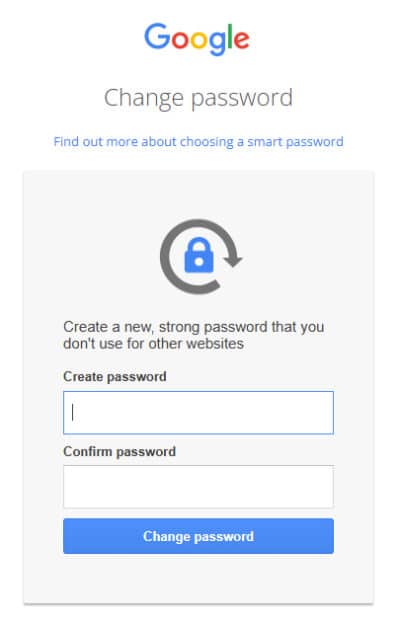
2. Set a new password. Choose something secure that you’ll remember.
3. You’ll land in Gmail. This is your inbox for everything to do with clients.
4. To open Google Calendar, click the grid of nine dots, top right. If you’ll use this as your main calendar, it’s the one you’ll connect to SimplyMeet in 3c.
Handy extras: add the account to your phone (iPhone: Settings › Mail › Add Account › Google. Android: in the Gmail app settings), and bookmark Gmail and Calendar in your browser.
3b
SimplyMeet
The booking system clients use to book and pay for sessions with you.
Show me how
1. Look for an email from SimplyMeet inviting you to join, and click Accept Invitation.

2. Sign in with your new @laurahow.com email, enter your name and click Continue.

3. Set a password you’ll remember.

3c
Your calendar
Connect your calendar so clients only see times when you’re free.
Show me how
This doesn’t have to be your @laurahow.com calendar. If you already keep an online calendar, connect that one. We never see your password or your personal events, only the bookings we need to match up payments.
1. Log in to SimplyMeet with your @laurahow.com email.

2. Go to Integrations & Plugins › Calendar Integrations › Add calendar account.

3. Choose Google Calendar (recommended), or iCal or Outlook if that’s what you use. Make sure syncing is switched on.
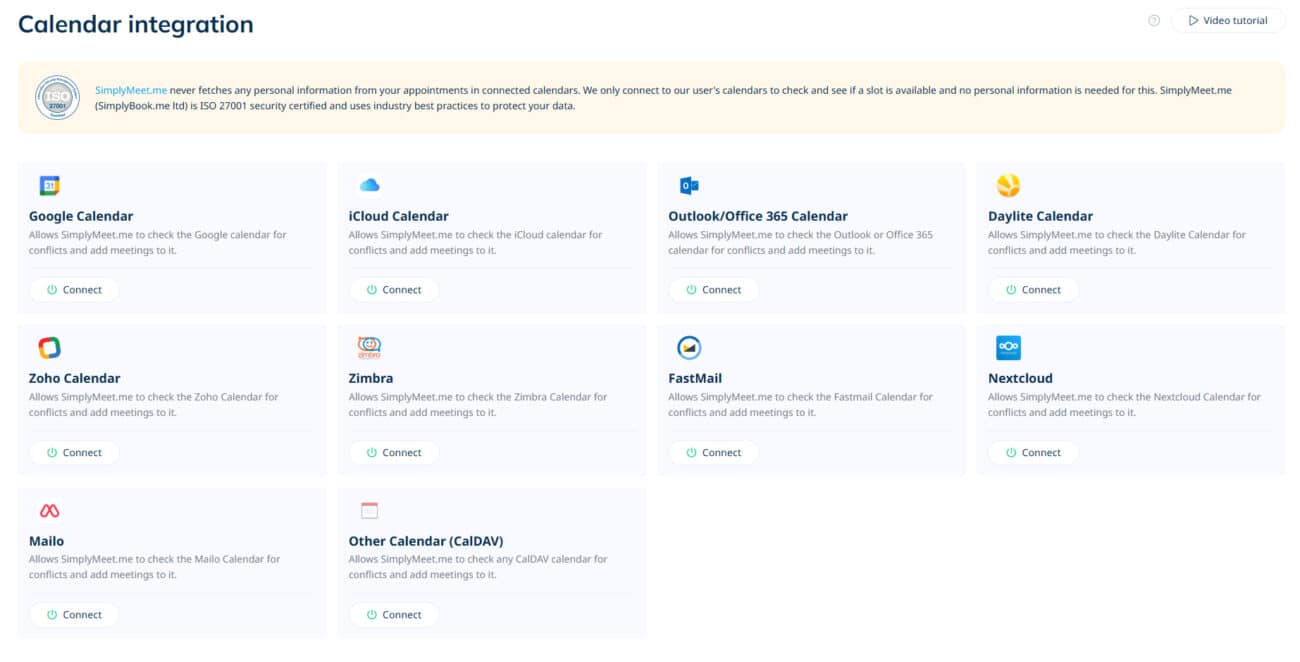
For Google Calendar:
4. Pick the Google calendar you use for appointments.

5. Grant access to SimplyMeet.
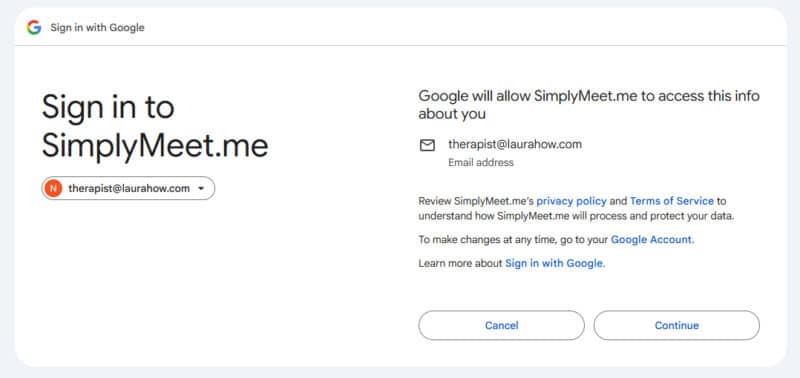
6. Allow full access.
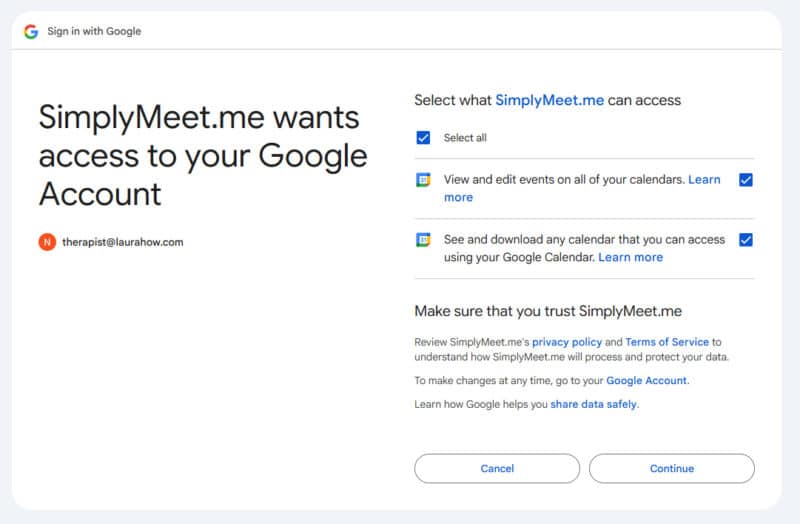
7. Let SimplyMeet check your calendar for conflicts.

8. Give calendar access to “Owners”.

9. Confirm the connection.
Using iCal or Outlook? SimplyMeet’s video tutorial walks you through it.
3d
Zoom or Google Meet
Every booking creates its own video link automatically.
Want to look your best on camera? See the setup guide.
Show me how
Zoom Pro is preferred. If you already use Google Meet for client work, follow SimplyMeet’s Google Meet guide instead.
1. No Zoom account yet? Sign up and choose Pro. Sessions are 60 minutes and the free plan stops at 40.
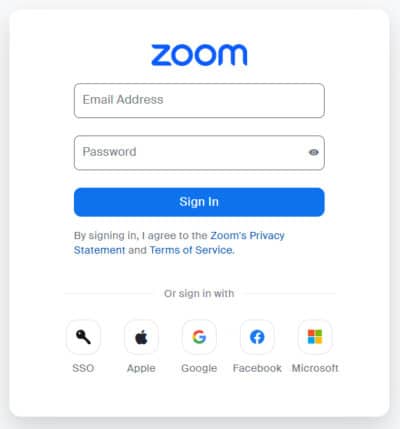
2. In SimplyMeet, go to Integrations › Zoom, click Connect and approve.
3. Allow access. We never see your Zoom login.
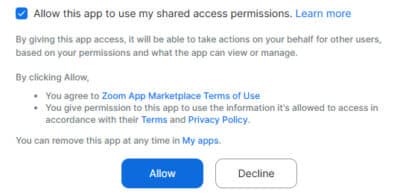
From then on, each booking creates its own Zoom link, sends it to the client and adds the session to your calendar.
The one rule that matters most: keep your calendar up to date. Russ sets your weekly working hours in SimplyMeet, and any time within them that isn’t blocked out can be booked. So mark holidays, appointments, supervision and other client work as Busy or Out of office. “Free” events (like birthdays) and all-day “Available” events don’t block anything. If you see clients elsewhere too, keep those sessions in the same calendar, or synced into it, or you’ll get double bookings.
Step 4: Go live
When you’ve finished, let Russ know. He’ll check everything works, set up your privacy policy with you, and add your profile to the Meet the Team page so clients can find and book you.
How clients book you
- A client finds you on the Meet the Team page and books a first session from your profile.
- They pay when they book, through the website. Payment goes to LauraHow.com, and you invoice us monthly (see Getting paid below).
- They get a confirmation email with their video link, plus a link to fill in a short questionnaire and sign the Client Agreement.
- The session appears in your calendar with the same video link.
- After the first session, they can book follow-ups from your profile page.
All client emails go through your @laurahow.com address. Please don’t share personal contact details, other booking links or other ways to pay (clause 11 of the agreement).
How we work
- Approach: direct, emotionally honest and solution-focused. Pro-intimacy and pro-relationship, culturally aware, grounded and practical.
- Boundaries: clear, kind and consistent. No socialising with clients, and contact between sessions is for admin only.
- Notes: brief and factual, stored securely, in line with your regulator’s or insurer’s guidance.
- Confidentiality and safeguarding: follow UK standards, and local rules if you’re abroad. Tell Laura promptly if you’re worried about anything.
- Insurance: your own professional indemnity insurance, covering online work and international clients.
- Client choice: clients always see the therapist they chose, unless they ask to change.
Tips for great online sessions
Clients notice how you look and sound on screen. These tips will help every session feel calm and professional.
Limit interruptions
Put a ‘do not disturb’ sign on your door, put your phone on silent, close anything that sends notifications and reschedule deliveries if you can.Find a private, comfortable space
Choose a quiet room where you can’t be overheard and won’t be disturbed for the whole session. Confidentiality starts with the room.Make sure your full internet speed is available
For a smooth connection it’s worth checking your computer isn’t running updates, streaming media or downloading files.Know your way around Zoom
Learn the settings so you can change the view, swap mics or switch to headphones without fuss, and talk a client through it if they get stuck.Lighting and positioning
Clients need to see your face clearly. Sit facing a window or a soft light, with the camera at eye level and your eyes in the top third of the frame.Hide self-view
Once you’re happy with how you look, hide self-view so you can give the client your full attention.Take a few minutes before you begin
Give yourself a quiet few minutes before each session. Before your first client, test your camera and mic.Have a backup plan
Keep your phone nearby. If the connection fails, email the client straight away from your @laurahow.com address so they know what’s happening.For the full setup, step by step (mic, camera, light and background), use Laura’s Recording Setup Guide. It takes about five minutes and works for client sessions and TeamPod recordings alike.
Getting paid
VAT is taken off the session fee first, and you keep 70% of what is left. The other 30% goes to LauraHow.com to cover marketing, referrals, admin and technical infrastructure. Fees are reviewed at least once a year, so your earnings grow as the practice does.
For example, on a £144 session, VAT is £24, which leaves £120. You receive £84.
Your monthly invoice
At the start of each month, email Russ at russell@laurahow.com an invoice for the month before. Please include:
- Your name and address
- The invoice date and a unique invoice number
- The period it covers (for example 1–31 May)
- Each session you delivered, with its date, and the total
- Your bank details, if we don’t have them yet
We check it against the booking records and usually pay by bank transfer within seven days. Tip: a simple running list of your sessions (a Google Sheet works well) makes invoicing quick.
What to expect from us
Clients don’t always arrive straight away. For some therapists the right match comes quickly. For others it takes a few weeks, or even a few months, for regular bookings to build. While that happens, we’ll be working to get you seen:
- Monthly mentoring: a 60-minute mentoring and case consultation session with Laura every month, included free.
- TeamPod: you’ll be invited onto TeamPod, our team podcast, so listeners get to know you.
- Love & Cherish Podcast: where it fits, we may invite you onto the Love & Cherish Podcast to talk about your specialist topics.
- Your specialisms promoted: we’ll announce that you’ve joined, with your areas of expertise, on the website and across our channels.
- Newsletters and YouTube: your work may be mentioned when a topic matches your expertise.
- Referrals from Laura: when Laura’s diary is full, she passes new enquiries to the team member who fits best.
The aim is steady, sustainable growth in your caseload over time.
Questions at any point? Email Russ at russell@laurahow.com. Welcome aboard.